
The Email Link Distribution report allows distribution of shop links to all levels of client managers.
Begin by selecting a survey on the top of the filter bar.
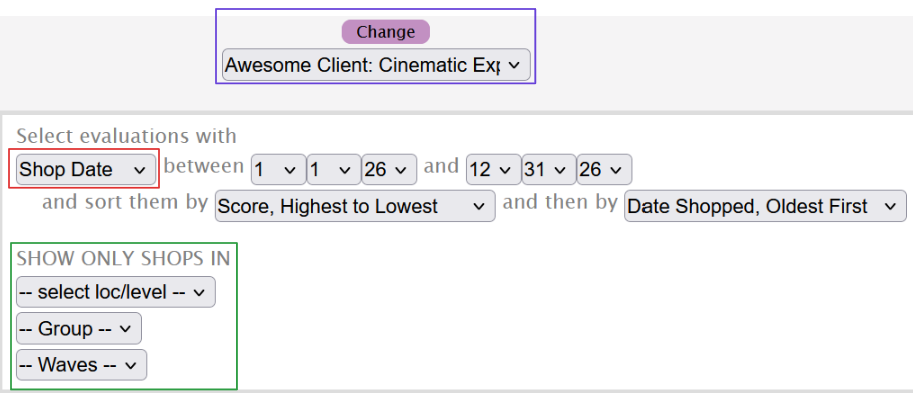
While the Date range selector will be automatically set to the current year, you can edit it to match the range you require.
Furthermore, the next two dropdowns allow you to sort the shops by their score, and then by the shop date.
The Show Only Shops In filter allows you to limit the data being displayed by Levels, Groups and Waves. These filters can be used together or individually to match the generated data to your requirements.
Emailing
The system determines which shops belong to which managers and distributes shop links to the appropriate managers accordingly. Each manager will receive an email containing links to only his or her shops. The system also tracks who has already received each link to ensure that a manager does not receive a link more than once. This tracking is done on a per-manager basis, so distributing a link to a manager for one level will not prevent it from being sent to a manager of another level.
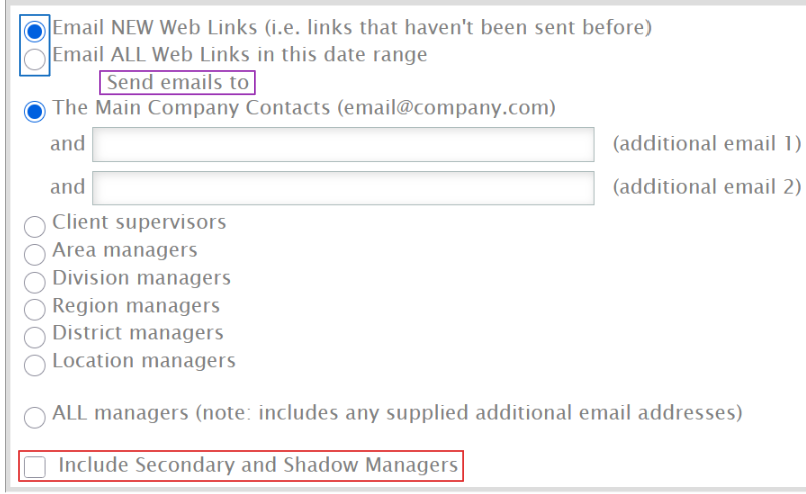
The first two radio buttons help you select if you want to email new shops (shops that have not been sent before) or include all shops. Choosing the latter will send links for all shops within the date range, regardless if they have been distributed in the past.
The next few options help you select which managers you would like to distribute links to.
Your main company contact's email will be automatically filled in, but you can add up to two more additional email addresses.
Other options are the hierarchy levels, and in this case the manager of a certain level will only receive links for shops done on their level. For instance, a division manager will only receive shops done in their division.
To email all managers, simply use the 'all managers' option.
Last, to include secondary and shadow managers, check the last checkbox of this section.
Email Properties
The From Address will default to the email address associated with your account, but you can update it to any valid email address.
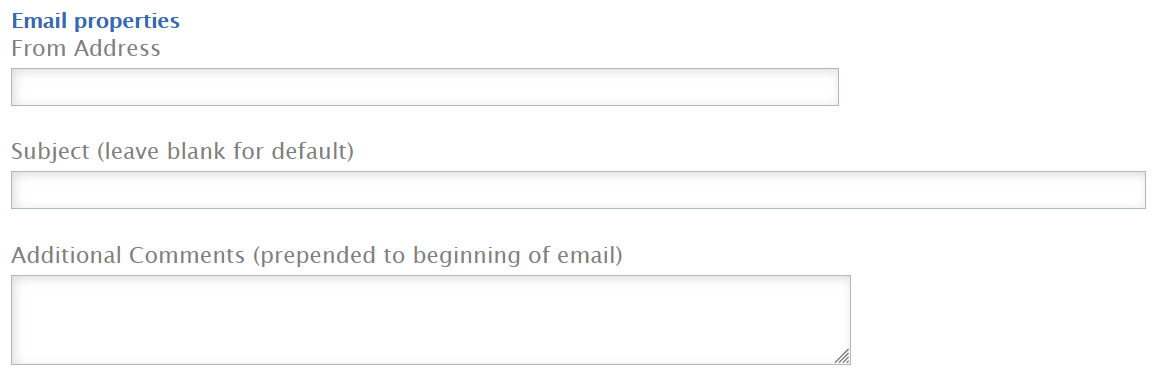
The Subject field is optional, but when filled in, it will be used as the subject for all the emails that are sent. If the Subject is not supplied, one will be generated when the emails are sent, which will include the manager type and date range.
Additional comments may be added that will be prepended at the beginning of each email, before the shop links are displayed.
Finally, you are able to select whether you would like to email the shops right away, or view a preview of the emails before they are sent.

Click the Go button at the end of the page to either preview your emails or send the emails.