
The Data Mining report displays the answers for a question in a table format showing the shop counts and percents for each selected answer option.
Begin by selecting a survey on the top of the filter bar.
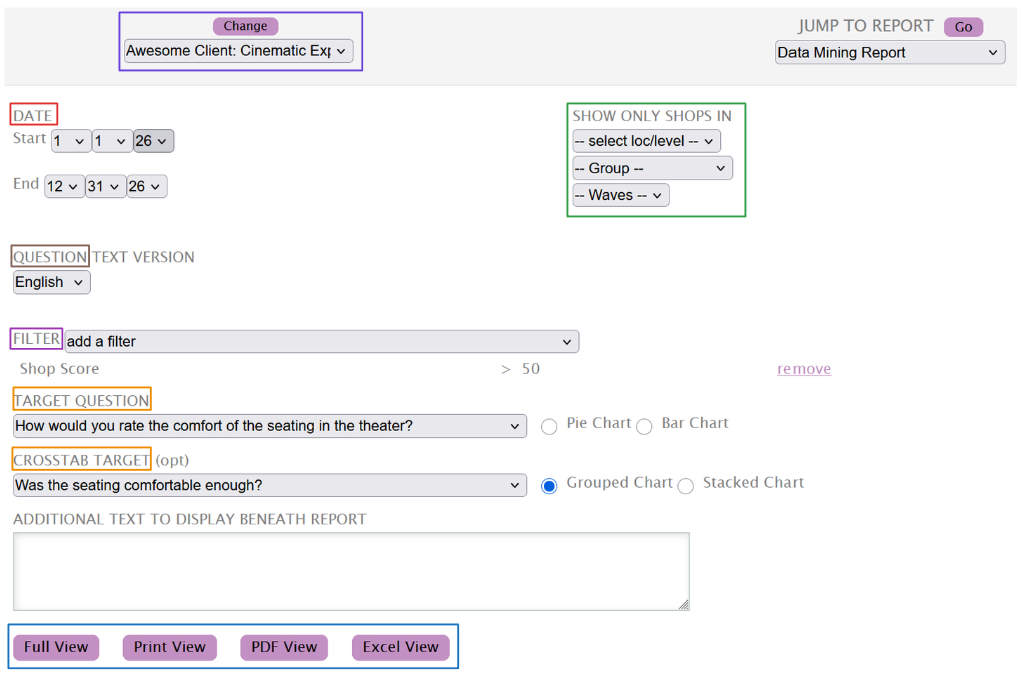
While the Date range selector will be automatically set to the current year, you can edit it to match the range you require.
The Show Only Shops In filter allows you to limit the data being displayed by Levels, Groups and Waves. These filters can be used together or individually to match the generated data to your requirements.
Use the Question option to select the display language for the questions.
The Filter dropdown allows you to select one or multiple filters for the data. For instance, you can run the report on the shops that have scored higher than 50%.
Select the Target question. The Pie and Bar charts are only available if the Crosstab Target question isn't used. If it is, the graph types available will be Grouped or Stacked, but not Pie or Bar.
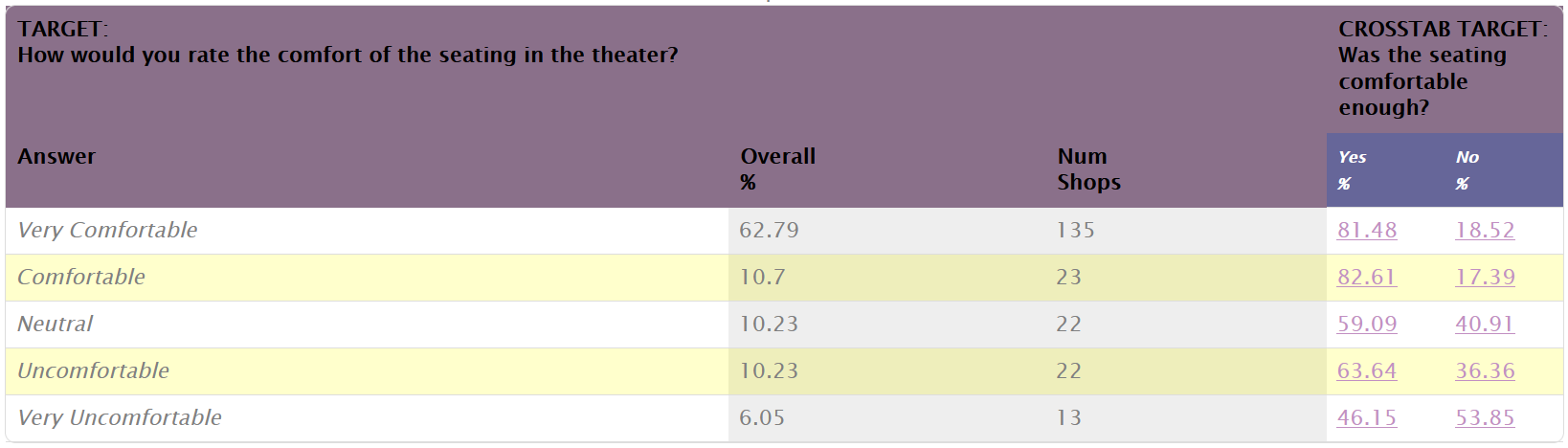
You can click on the links in the Crosstab Targe columns to open a list of shops that filtered to match the set options.
Once satisfied with the filters, use any of the buttons below the input box to generate the report. You can read more about each here.