
The Answer Summary report shows the breakdown of answers for selected questions within the selected date range.
Begin by selecting a survey on the top of the filter bar.
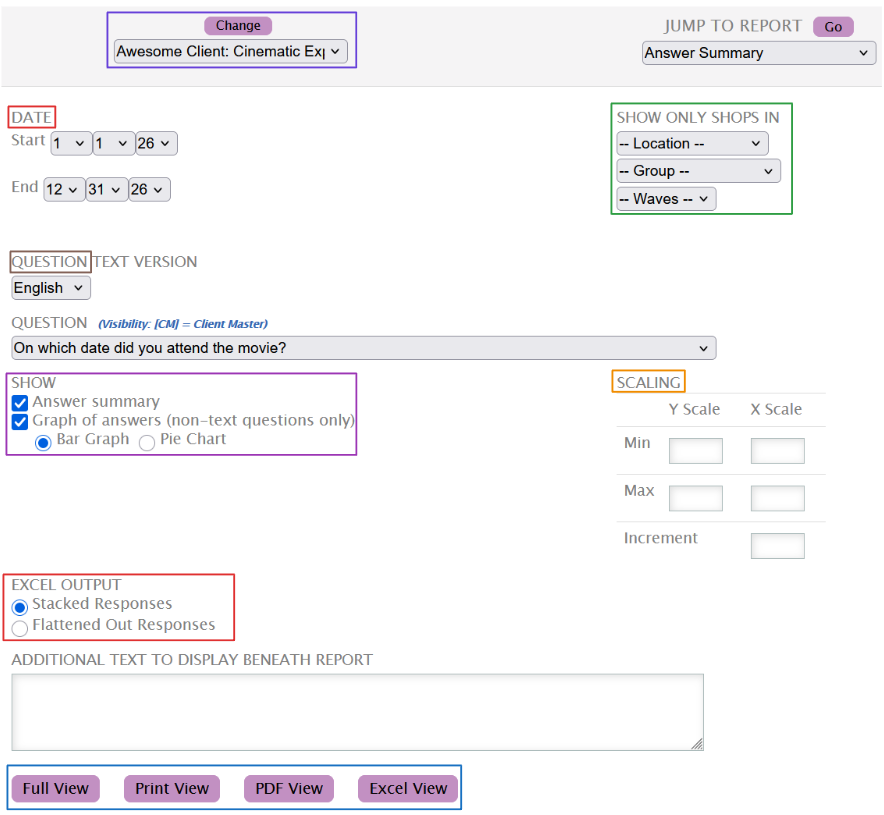
While the Date range selector will be automatically set to the current year, you can edit it to match the range you require.
The Show Only Shops In filter allows you to limit the data being displayed by Levels, Groups and Waves. These filters can be used together or individually to match the generated data to your requirements.
Use the Question options to select which question you want to see the data for, and in which language.
If the data is tightly clustered, use the Scaling setting to reduce the white space on the graph and zoom into the data points.
The Show settings control whether to show a table of the answers per shop, to graph the answers in a bar or pie graph, or to do both. Graphing is only available for non-text questions, for instance, yes/no questions, radio questions, etc.
| Bar Graph | Pie Chart |
|---|---|
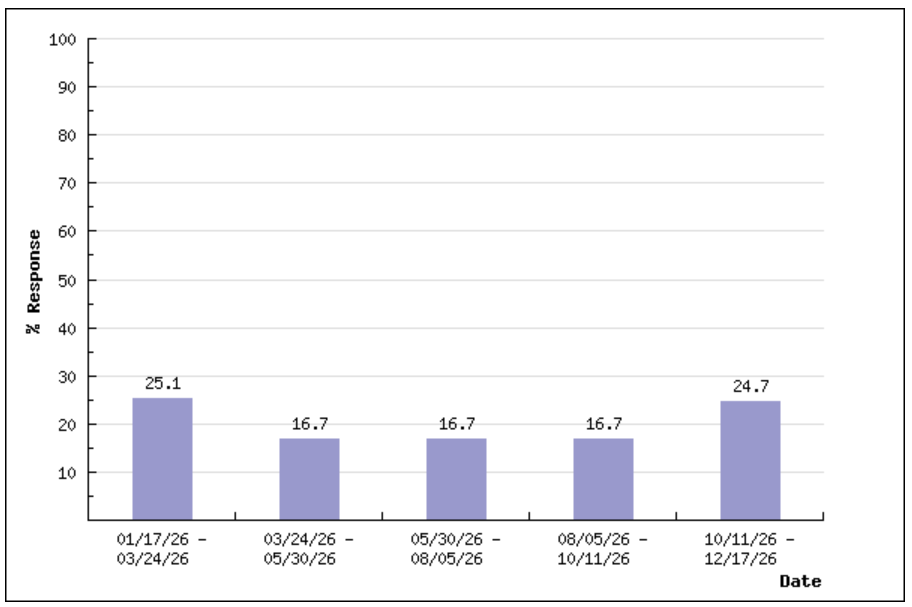 | 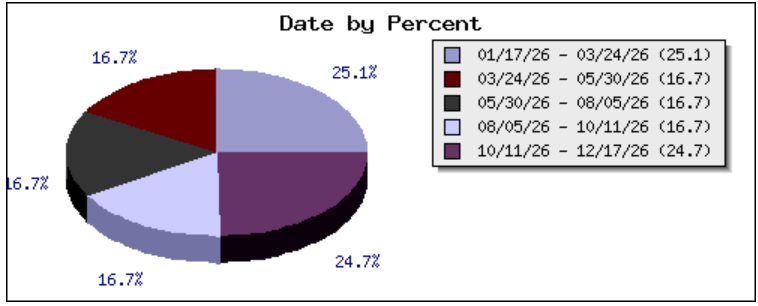 |
The Excel Output radio buttons help with changing layout of the document allowing you to customize the output for the best visibility.
Once satisfied with the filters, use any of the buttons below the input box to generate the report. You can read more about each here.