
The Multiple Survey Report gives a summary for each survey for the client, and then an overall summary of all the surveys averaged together.
Begin by using the survey dropdown on the top, and change it to Select Surveys to Include option. This will provide a list of all the surveys available for linking, so you can easily use the checkmark next to each you want to include.
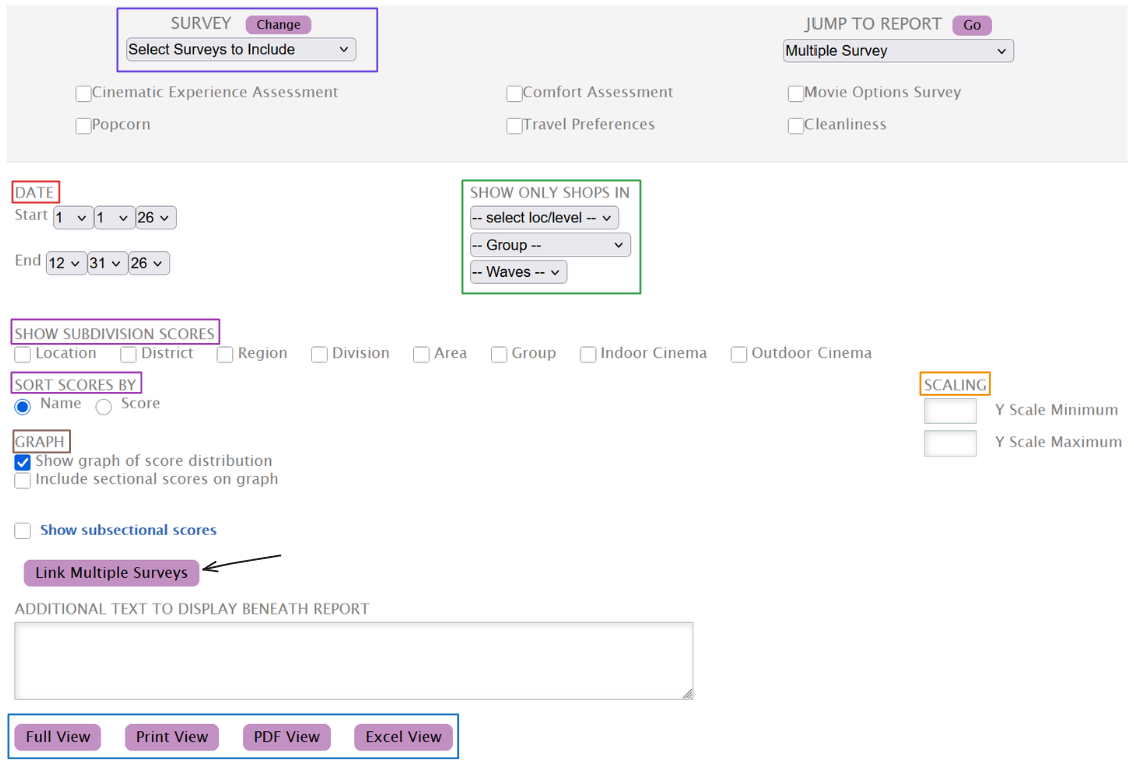
While the Date range selector will be automatically set to the current year, you can edit it to match the range you require.
The Show Only Shops In filter allows you to limit the data being displayed by Levels, Groups and Waves. These filters can be used together or individually to match the generated data to your requirements.
If the data is tightly clustered, use the Scaling setting to reduce the white space on the graph and zoom into the data points.
Use the Show Subdivision Scores checkboxes to select which levels, groups and/or ULGs to include in the report. The Sort Scores By selector allows you to choose the sorting of the results.
The Link Multiple Surveys feature allows you to tie together single sections from different surveys. Use the button to open a new page and selects the sections of the surveys you want linked.

You will be able to clear the selections or edit them.
Once satisfied with the filters, use any of the buttons below the input box to generate the report. You can read more about each here.